“As a developer who is new to ValidMind, I want to learn how to generate model documentation, add my own tests, edit the content, and then submit my documentation for approval.”
First, let’s make sure you can log in and show you around.
Training is interactive —you explore ValidMind live. Try it!
→ , ↓ , SPACE , N — next slide ← , ↑ , P , H — previous slide ? — all keyboard shortcuts
To try out this training module, you need to have been onboarded onto ValidMind Academy with the Developer role.
Log in to check your access:
Be sure to return to this page afterwards.
This introductory notebook includes sample code and how-to information, all in one place.
This is the ValidMind Platform UI.
From here, you can:
To start the documentation process, you register a
new model in the model inventory or select one that
has already been registered.
Explore ValidMind live on the next page.
From Model Inventory:
[Quickstart] Customer Churn Model
Did you find the code snippet?
You will copy and paste a similar
snippet into your own notebook
later to upload documentation.
Now that you have generated documentation, edit it on ValidMind to add text or test-driven content blocks.
(Scroll down for the full instructions.)
Try it live on the next page.
Content blocks provide sections that are part of your model documentation — you can always add more, as required, and fill them with text or test results.
Select a model by clicking on it or find your model by applying a filter or searching for it.
In the left sidebar that appears for your model, click Documentation.
Navigate to the 3. Correlations and Interactions section.
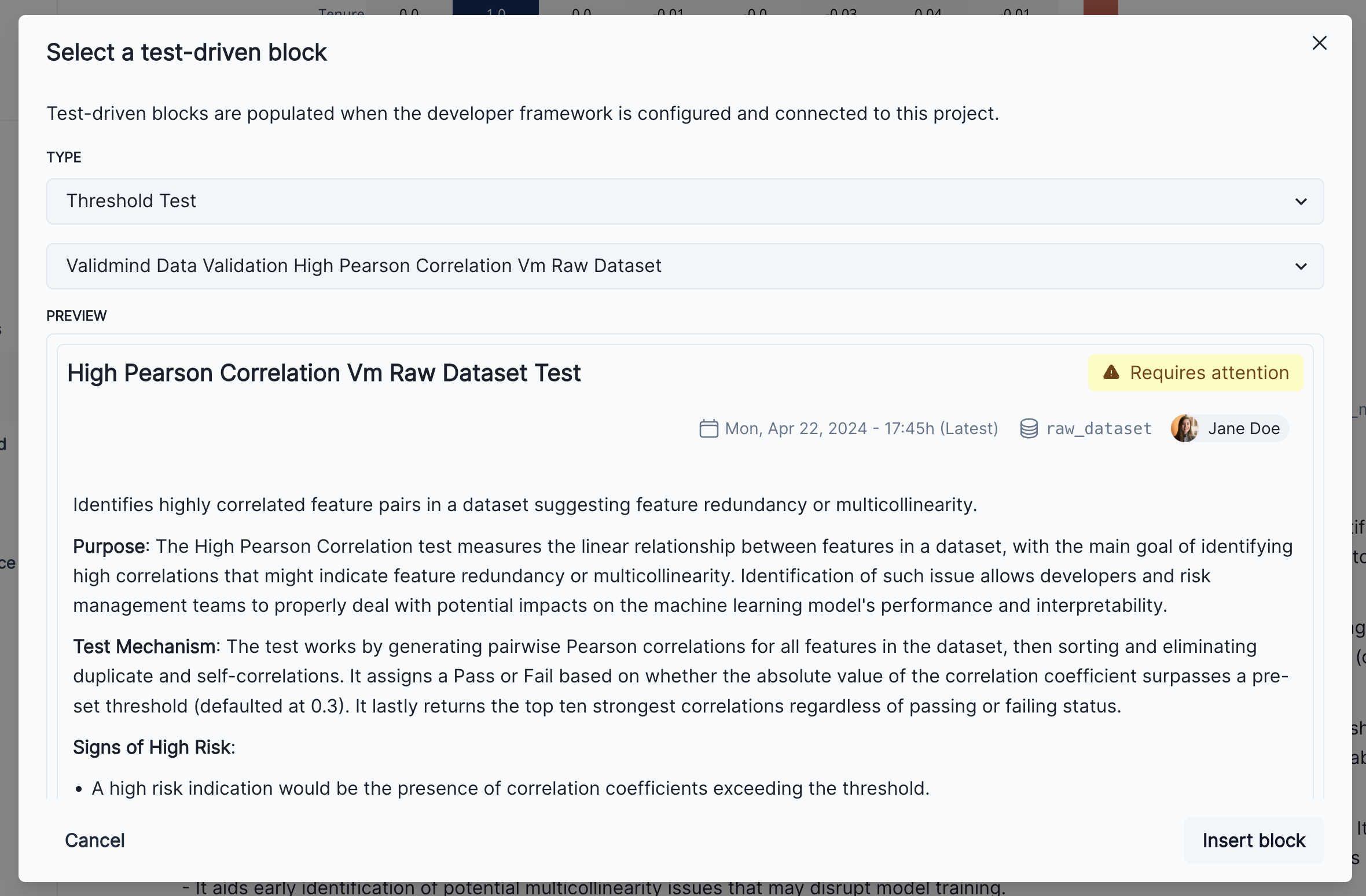
Hover the cursor after the Pearson Correlation Matrix content block until a horizontal dashed line with a button appears that indicates you can insert a new block:

Click and then select Test-driven block:
A preview of the threshold test gets shown:

Click Insert block.
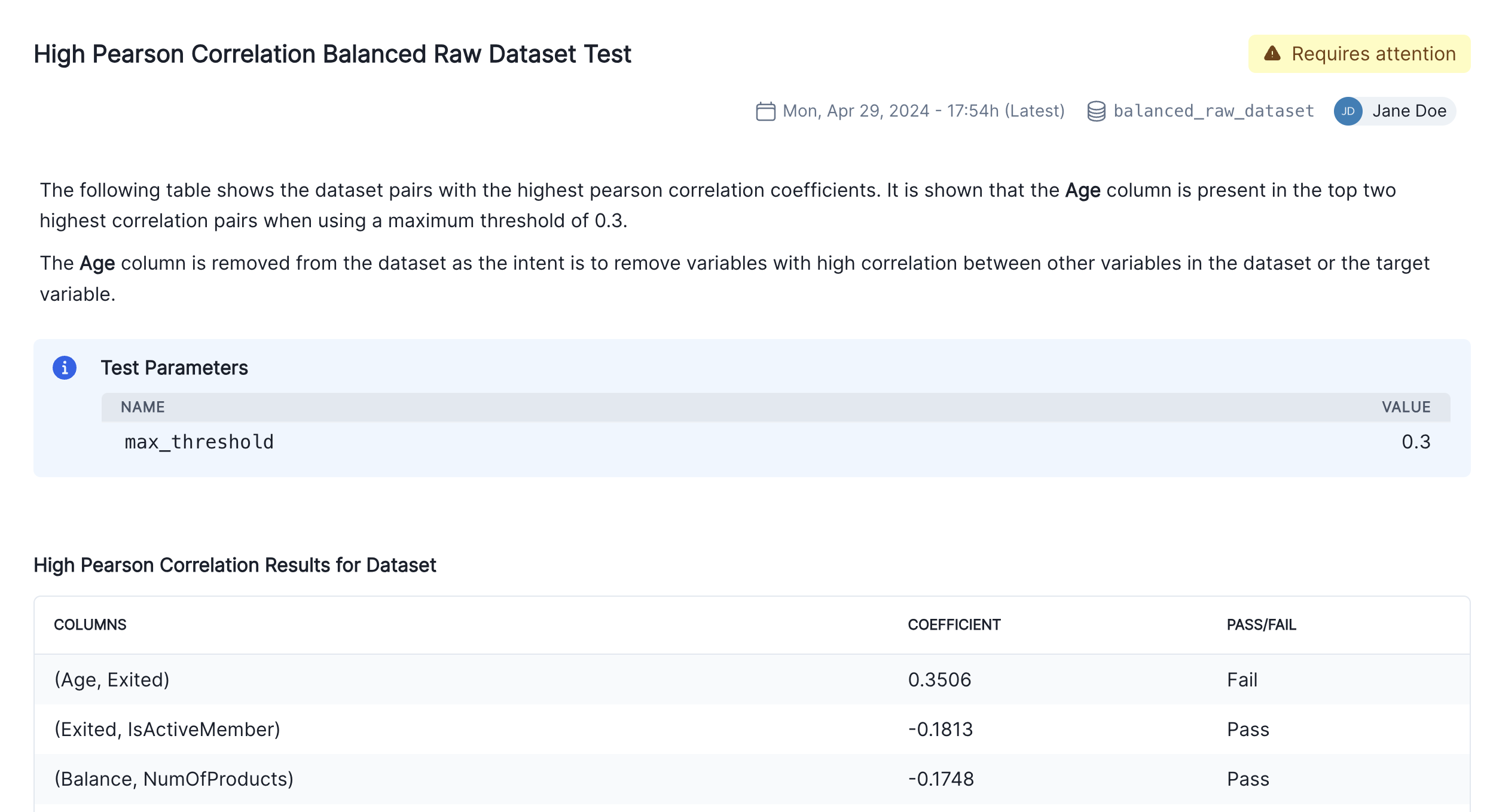
After you have completed these steps, the new content block becomes a part of your model documentation. You will now see two individual results for the high-correlation test in the 3. Correlations and Interactions section of the documentation.
To finalize the documentation, you can also edit the description of the test result to explain the changes made to the raw data and the reasons behind them. For example:
Have a question? Collaborate with other developers or with your validator right in the model documentation.
In any section of the model documentation, select the portion of text you want to comment on, and click the Comment button in the toolbar.
Enter your comment and click Comment.
You can view the comment by clicking the highlighted text. Comments will also appear in the right sidebar.
Click the highlighted text portion to view the comment thread.
Enter your comment and click Reply.
You can view the comment thread by clicking the highlighted text.
Click the highlighted text portion to view the thread, then click to resolve the thread.
To view the resolved comment thread, click the Comment archive button in the toolbar. You can view a history of all archived comments in the Comment archive.
To reopen a comment thread, reply to the comment thread in the Comment archive or click the Reopen button that appears next to the highlighted text portion.
Try it live on the next page.
On JupyterHub: Run the cells in 3. Implementing custom tests.
On JupyterHub: Run the cells in 4. Finalize testing and documentation.
Track changes and updates made to model documentation over time.
Select your model by clicking on it or find your model by applying a filter or searching for it.
In the left sidebar that appears for your model, click Model Activity.
The table in this page shows a record of all activities, including:
API Client)
Try it live on the next page.
When you’re ready, verify the approval workflow, and then submit your model documentation for approval.
(Scroll down for the full instructions.)
Try it live on the next page.
For you to be able to transition through the approval workflow, your model documentation must have completed all required steps.
Select a model by clicking on it or find your model by applying a filter or searching for it.
In the left sidebar that appears for your model, click Documentation.
Under Actions on the right, initiate the transition from the current state to the next workflow state.
Examples:
Ready for Validation to indicate that a model developer has completed the initial model documentation and is ready to have it validated. Add any notes that need to be included and then click Ready for Validation.Ready for Review to indicate that you have completed your initial model validation report, fill in the mandatory notes, and submit.There is more that ValidMind can do to help you create model documentation, from using your own template to code samples you can adapt for your own use case.
Or, find your next learning resource on ValidMind Academy.

ValidMind Academy | Home