Training for Model Validators
Link your findings and the evidence from the test results you analyzed to the validation report.
Try it live on the next page.
Select a model by clicking on it or find your model by applying a filter or searching for it.
In the left sidebar that appears for your model, click Validation Report and then locate 2. Validation.
You can now expand any subsection of the validation report you would like to work with.
For example: Select 2.1.1. Assumptions.
In any section of the documentation where the button is available, click Link finding to report.
![A screenshot of the validation report section 2.1.1. that shows a compliance assessment with the option to link to finding.]()
On the Link finding to report page that opens, select from the list of available findings, or create a new finding.
Click Update linked findings.
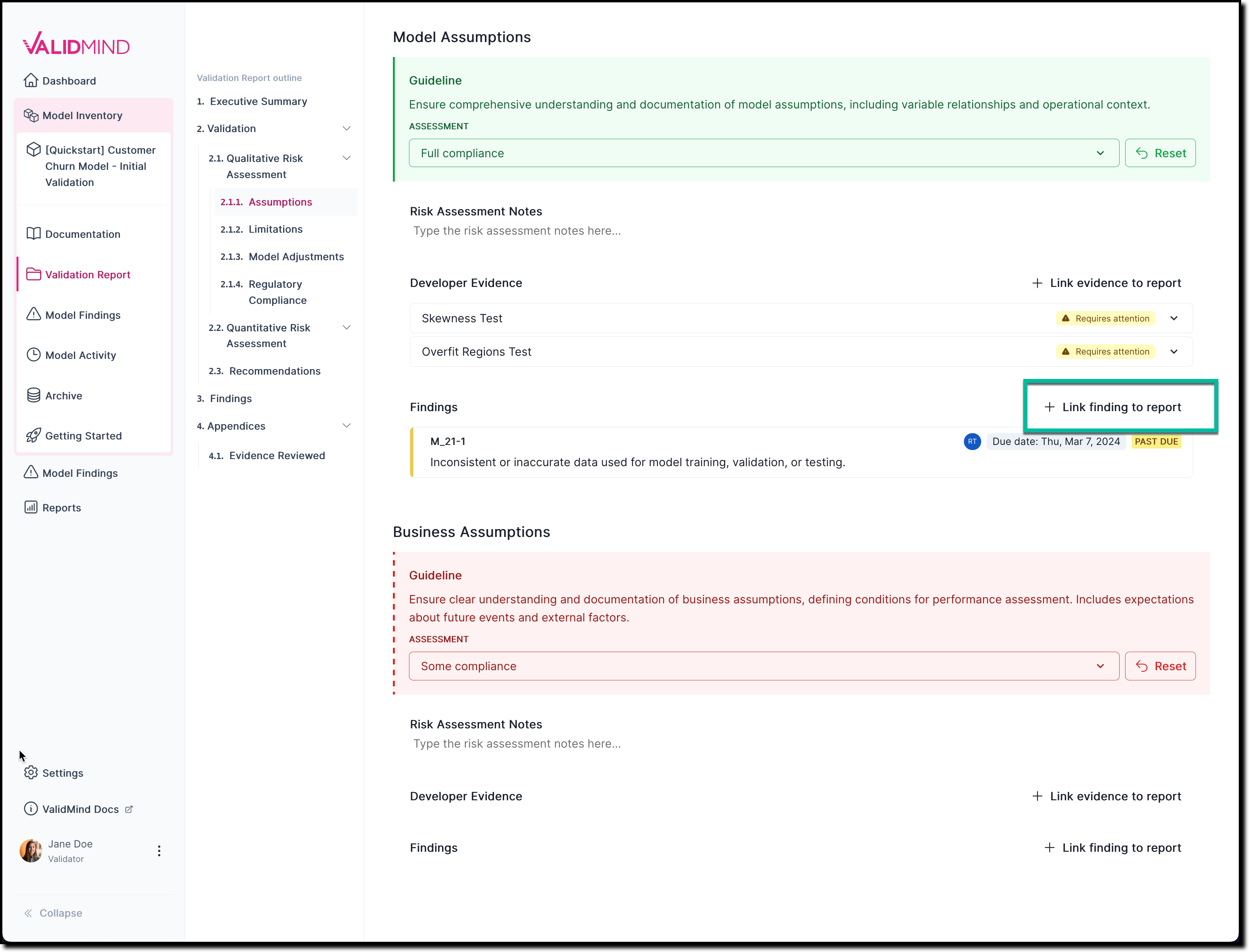
The newly linked-to finding now gets shown under Findings.
Select a model by clicking on it or find your model by applying a filter or searching for it.
In the left sidebar that appears for your model, click Validation Report and then locate 2. Validation.
You can now expand any subsection of the validation report you would like to work with.
For example: Select 2.1.1. Assumptions.
In any section of the documentation where the button is available, click Link evidence to report.
![A screenshot of the validation report section 2.1.1. that shows a compliance assessment with the option to link to evidence.]()
On the Link evidence to validation report page that opens:
- From the Tests or Metrics tab, select the evidence that is related to your assessment.
- If you are not sure if something is relevant, you can toggle the section to expand it for more details.
Click Update linked evidence.
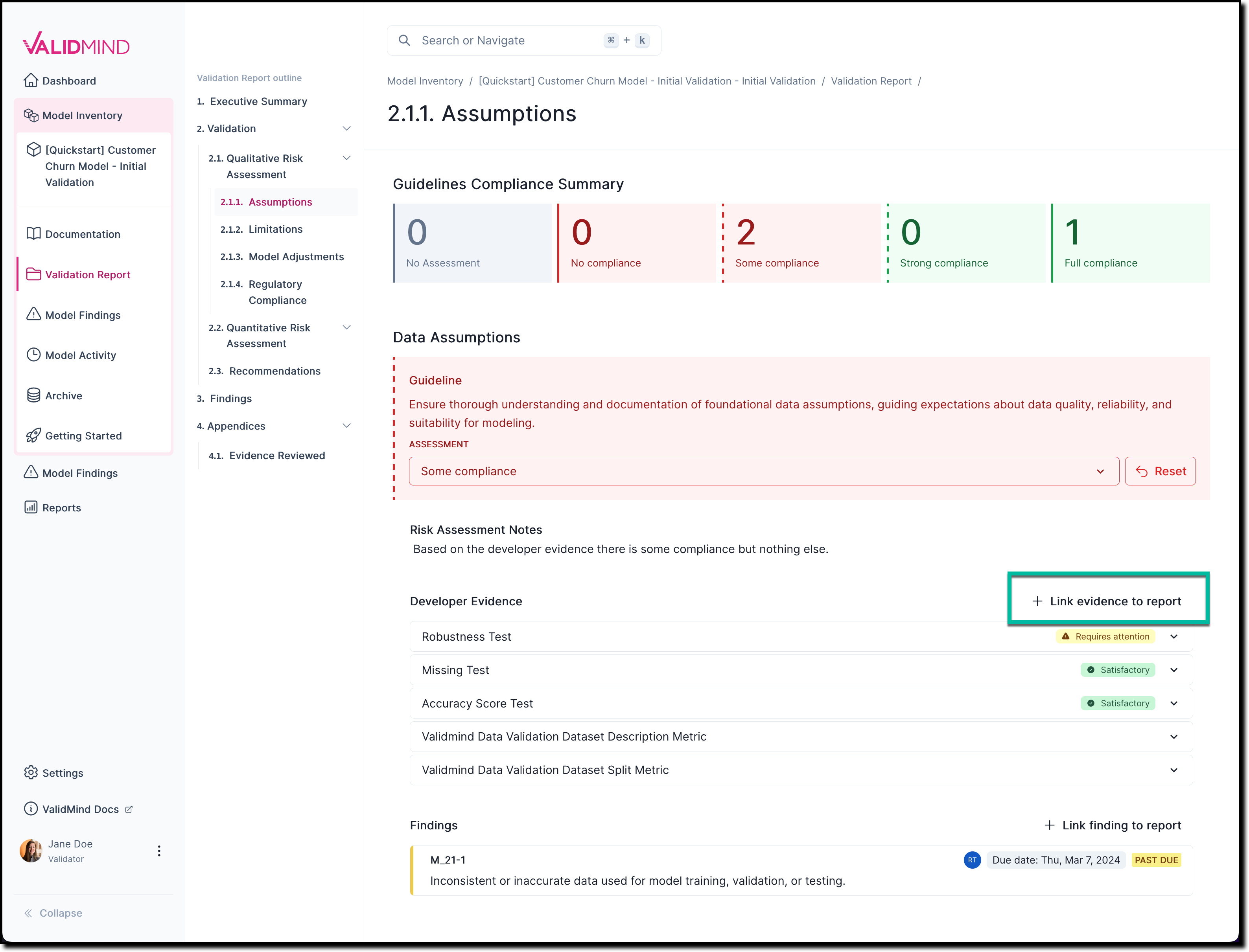
The newly linked-to evidence now gets shown under Developer Evidence.
Based on the evidence you analyzed and your model, assess compliance with your guidelines.
(Scroll down for the full instructions.)
Try it live on the next page.
Assess compliance
Select a model by clicking on it or find your model by applying a filter or searching for it.
In the left sidebar that appears for your model, click Validation Report and then locate 2. Validation.
You can now expand any subsection of the validation report you would like to work with.
For example: Select 2.1.1. Assumptions.
In any section of the documentation where the Assessment dropdown menu is available, select one of the available options:
- No compliance — No tests have been run and no other evidence has been provided
- Some compliance — Evidence provided but not properly documented or verifiable
- Strong compliance — Evidence provided and documented, but not validated
- Full compliance — Evidence provided, documented, and validated
For example: To indicate that there is some compliance based on the evidence or findings you linked to:
![A screenshot of the validation report section 2.1.1. that shows a compliance assessment with the option to link to finding.]()
On the Link finding to report page that opens, select from the list of available findings, or create a new finding.
Under Risk Assessment Notes, add any relevant notes that explain your assessment further.
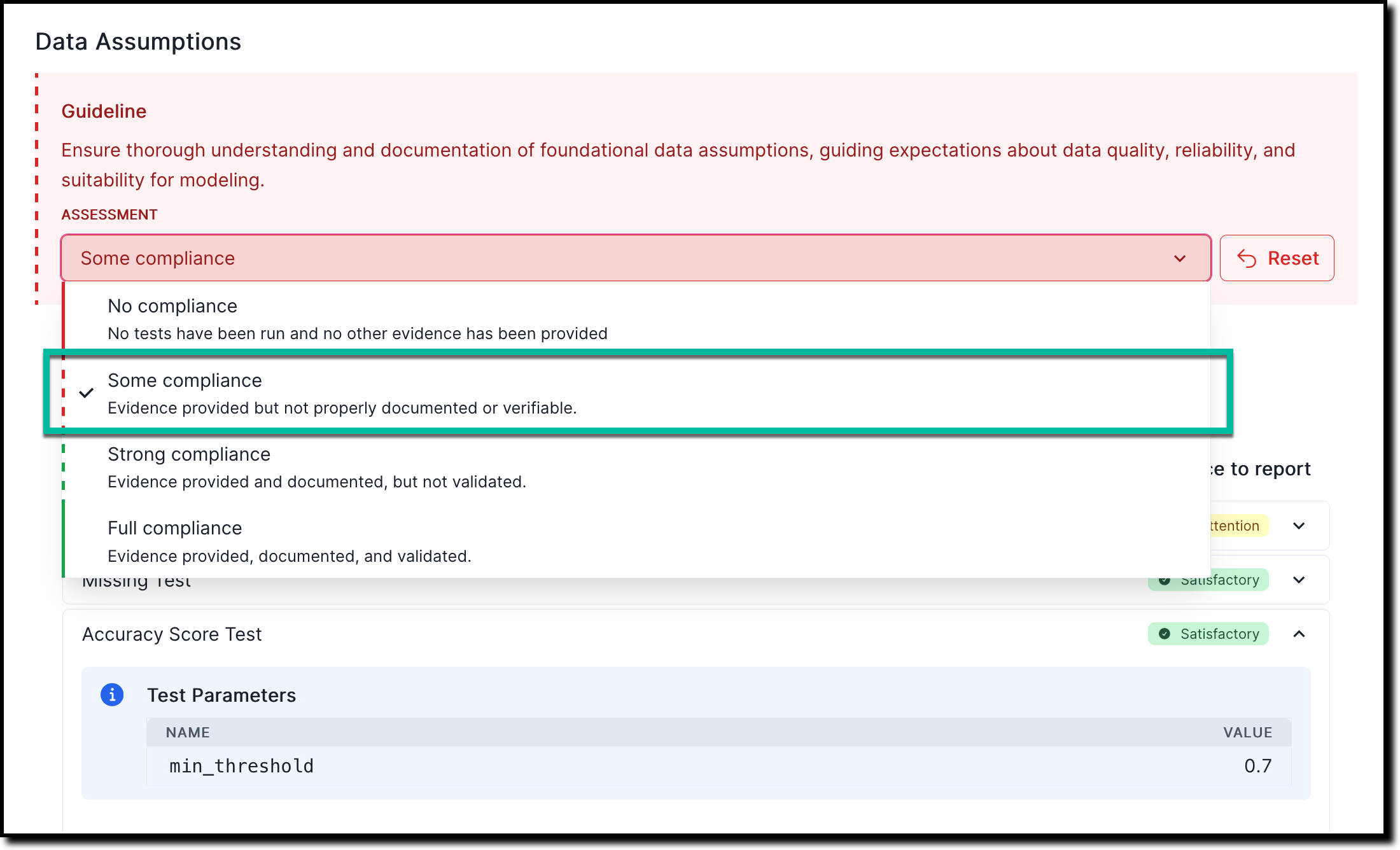
A compliance summary gets shown for each subsection under 2. Validation and provides a quick overview for current qualitative and quantitative risk assessments:

When you’re ready, verify the approval workflow, and then submit your validation report for approval.
(Scroll down for the full instructions.)
Try it live on the next page.
Select a model by clicking on it or find your model by applying a filter or searching for it.
In the left sidebar that appears for your model, click Documentation.
The current status of the project is displayed under Document Status.
For example:
In Documentationmeans that the model is currently being documented and can be submitted for validation next.In Validationmeans that the model is currently being validated and can be submitted for review and then approval.
Click See workflow to visualize the entire workflow that this model will go through.
![A summary view of the workflow steps that a model must go through, from initial documentation, to validation, review, and approval.]()
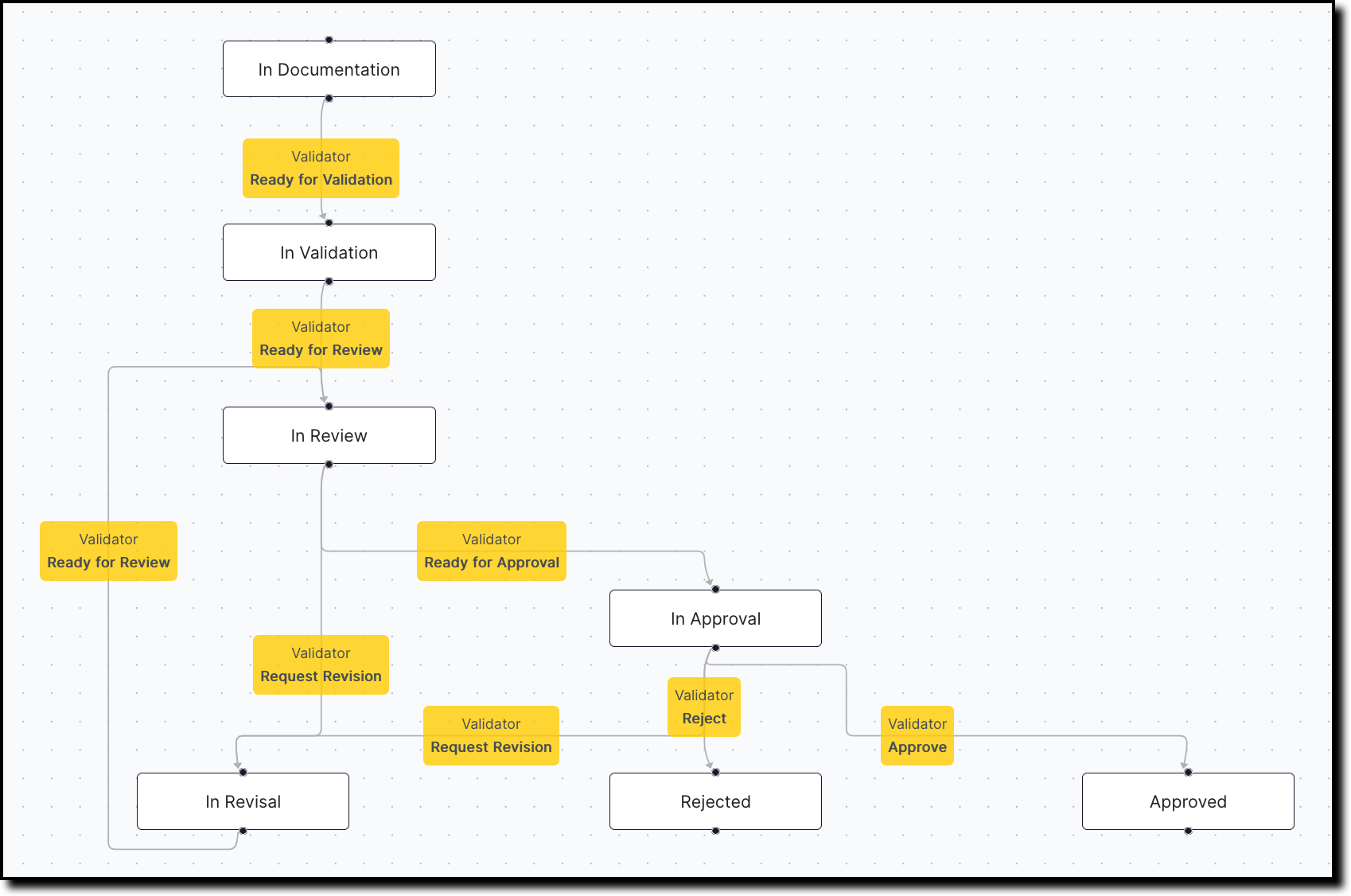
For you to be able to transition through the approval workflow, the model documentation and validation report must have completed all required steps. For example, you cannot submit a validation report for review until the model documentation itself has been submitted.
Select a model by clicking on it or find your model by applying a filter or searching for it.
In the left sidebar that appears for your model, click Documentation.
Under Actions on the right, initiate the transition from the current state to the next workflow state.
Examples:
- To submit model documentation for validation: Click
Ready for Validationto indicate that a model developer has completed the initial model documentation and is ready to have it validated. Add any notes that need to be included and then click Ready for Validation. - To submit validation reports for review and approval: Click
Ready for Reviewto indicate that you have completed your initial model validation report, fill in the mandatory notes, and submit. - To request revisions to model documentation or validation reports: Click Request Revision, fill in the mandatory notes to explain the changes that are required, and submit.
- To have your model documentation and validation report approved: Click Ready for Approval, fill in the mandatory notes, and submit.
- To submit model documentation for validation: Click
About validation reports
There is more that ValidMind can do to help you prepare validation reports, from using your own template to configuring the full approval workflow.
Or, find your next learning resource on ValidMind Academy.