Submit for approval
When you’re ready, verify the approval workflow, and then submit your model documentation or validation report for approval.
Prerequisites
- You hold the
Developerrole and are ready to submit your model documentation for review - You hold the
Validatorrole and are ready submit their validation report for review - The model you are documenting is registered in the model inventory
Workflow states and transitions can only be configured by an administrator.
Verify the workflow and view current status
In the left sidebar, click Model Inventory.
Select a model by clicking on it or find your model by applying a filter or searching for it.
In the left sidebar that appears for your model, click Documentation.
The current status of the project is displayed under Document Status.
For example:
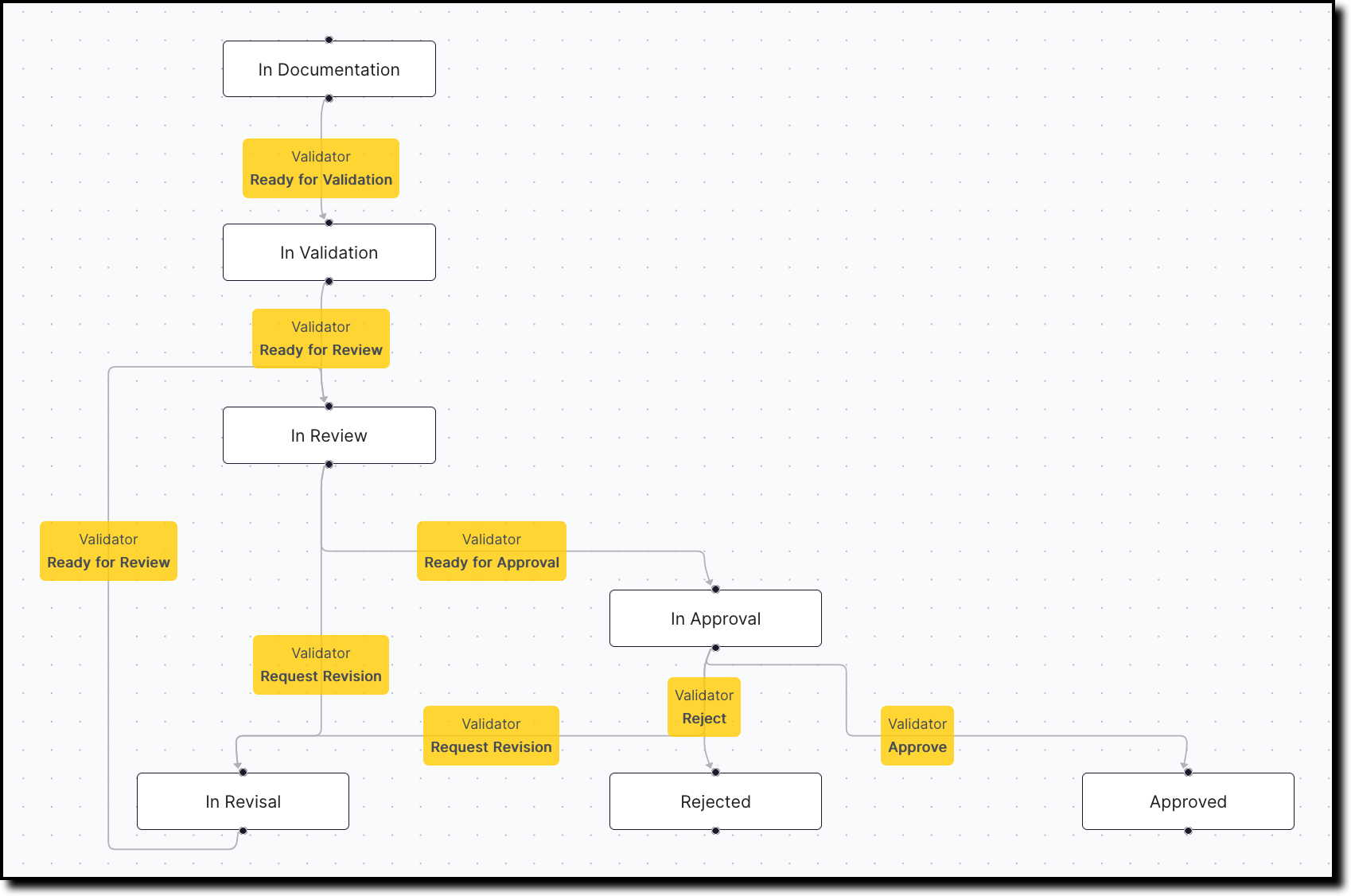
In Documentationmeans that the model is currently being documented and can be submitted for validation next.In Validationmeans that the model is currently being validated and can be submitted for review and then approval.
Click See workflow to visualize the entire workflow that this model will go through.
Advance model documentation or validation reports in the workflow
In the left sidebar, click Model Inventory.
Select a model by clicking on it or find your model by applying a filter or searching for it.
In the left sidebar that appears for your model, click Documentation.
Under Actions on the right, initiate the transition from the current state to the next workflow state.
Examples:
- To submit model documentation for validation: Click
Ready for Validationto indicate that a model developer has completed the initial model documentation and is ready to have it validated. Add any notes that need to be included and then click Ready for Validation. - To submit validation reports for review and approval: Click
Ready for Reviewto indicate that you have completed your initial model validation report, fill in the mandatory notes, and submit. - To request revisions to model documentation or validation reports: Click Request Revision, fill in the mandatory notes to explain the changes that are required, and submit.
- To have your model documentation and validation report approved: Click Ready for Approval, fill in the mandatory notes, and submit.
For you to be able to transition through the approval workflow, your model documentation or validation report must have completed all required steps. For example, you cannot submit a validation report for review until the model documentation itself has been submitted.
- To submit model documentation for validation: Click