Work with model findings
Model findings are detailed observations identified during the model validation process, highlighting any major or minor issues, deficiencies, model limitations, stability and robustness concerns, or needed adjustments.
These findings are critical for understanding the risk exposure and compliance status of models within an organization. To make them easier to track, findings are typically categorized by risk area, business unit, model status, and individual model, enabling targeted resolution and informed decision-making to mitigate identified risks and ensure model reliability and accuracy.
Prerequisites
- You hold the
Validatorrole - The model is already registered in the model inventory
- A model document project is completed or in progress
View model findings
To view all project findings:
In the left sidebar, click Model Findings.
In the page that opens, you can see a list of all model findings, including information for:
- Title
- Severity
- Status
- Inventory model
- Risk area
- Assignee
- Due date
Click on any model finding for more information, including the proposed remediation plan.
Filter project findings
By default, all model findings for all models are displayed and sorted by creation date, with the latest findings displayed first. To narrow down the findings to only those you want to see, you can apply some filters:
In the left sidebar, click Model Findings and then click Filter.
On the Select your filters dialog that opens, select your filtering criteria for:
- Status
- Model inventory
- Risk area
- Business units
- Severity
- Assignee
For example: To filter by open findings for the Customer Churn Model assigned to Jane Doe:
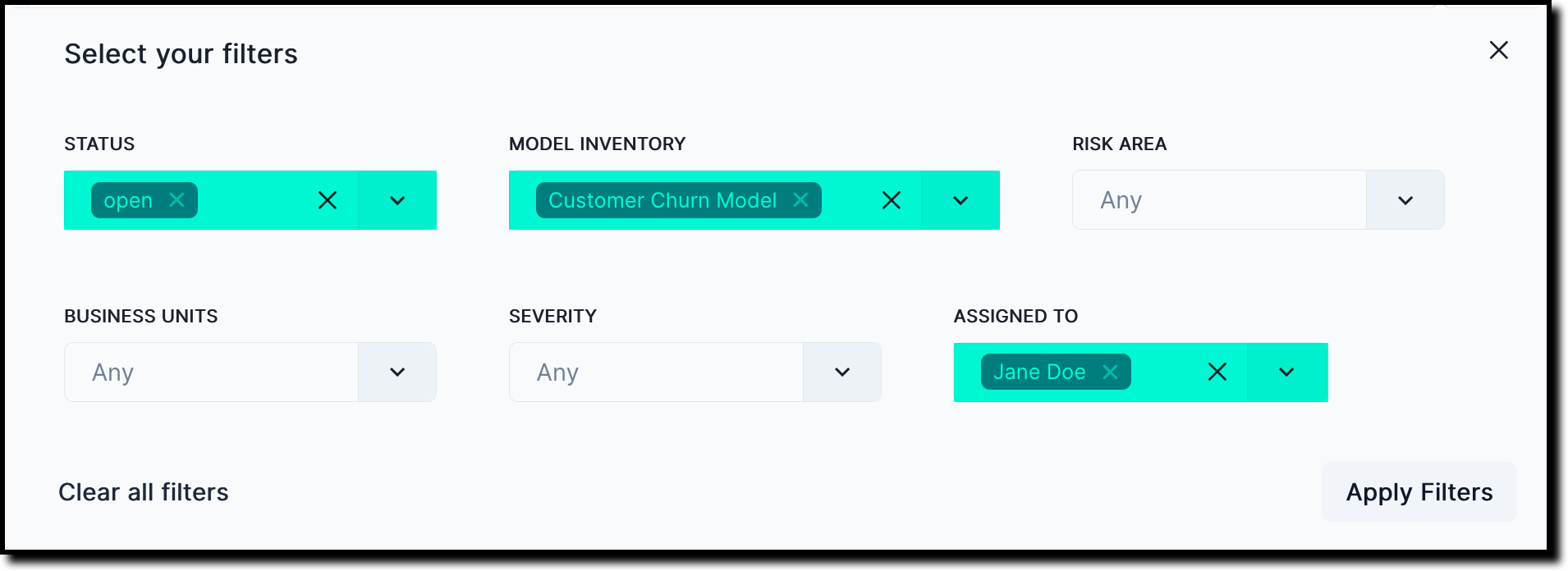
Click Apply Filters.
Filters can be removed by clicking on the next to them on the main Model Findings page where the results are displayed.
Add project findings
As part of validation process, you may find issues with the model documentation that must be resolved. To indicate that there is an issue and to track the resolution, you add a new finding:
In the left sidebar, click Model Inventory.
Select a model by clicking on it or find your model by applying a filter or searching for it.
In the left sidebar that appears for your model, click Documentation.
On the page that opens, click Add Finding.
On the Add Project Finding page that opens, provide information for:
- Title
- Risk area
- Owner
- Severity
- Due date
- Description
At a minimum, you must provide the required information indicated by
*.
Update project findings
As project findings get resolved or require other changes during the model validation process, you can update them:
In the left sidebar, click Model Findings.
On the page that opens, click on the finding you want to update or apply a filter to locate the correct finding first.
On the page that opens, make your updates to the finding. You can make updates to:
- Description
- Proposed remediation plan
- Status
- Severity
- Risk area
- Due date
- Assignee
Most updates are applied immediately but you must click Save to make changes to the finding description and proposed remediation plan effective.
What’s next
To get a summary view of all model findings and to identify specific areas of concerns for your model, you can view reports.