Work with content blocks
Make edits to your model documentation or validation reports by adding or removing content blocks directly in the online editor.
What are content blocks?
Content blocks provide you with sections that are part of a template. You can think of these sections as an empty canvas that you fill in with text, metrics, and test results. Multiple sections are joined to create a longer document with a table of contents that has different heading and subheading levels, such as 1., 1.1., and so on.
Types of content blocks:
- Simple text block
- Can be added anywhere on model documentation or validation reports and edited to include additional documentation in text format.
- Test-driven block
- Can be added to display one of the supported metrics or threshold test results collected by the developer framework.
Prerequisites
- You hold the
DeveloperorValidatorrole - The model you are documenting or validating is registered in the model inventory.
Add content blocks
In the left sidebar, click Model Inventory.
Select a model by clicking on it or find your model by applying a filter or searching for it.
In the left sidebar that appears for your model, click Documentation or Validation Report.
You can now jump to any section of the model documentation or validation report by expanding the table of contents on the left and selecting the relevant section you would like to add content to, such as 1.1 Model Overview.
Hover your mouse over the space where you want your new block to go until a horizontal dashed line with a sign appears that indicates you can insert a new block:

Click and then select one of the available options:
- Simple text block: Adds a new section with a blank content block. After the new content block has been added, click to edit the contents of the section like any other.
- Test-driven block: Select one of the options:
- Metric: Select one of the available metrics, such as Confusion Matrix.
- Threshold test: Select one of the available threshold tests, such as Data Quality: Skewness or Model Diagnosis: Overfit Regions.
For test-driven blocks, a preview of the available metrics or threshold test gets shown. Click Insert module when you are ready.
After you have completed these steps, the new content block becomes a part of your model documentation.
Remove content blocks
In the left sidebar, click Model Inventory.
Select a model by clicking on it or find your model by applying a filter or searching for it.
In the left sidebar that appears for your model, click Documentation or Validation Report.
You can now jump to any section of the model documentation or validation report by expanding the table of contents on the left and selecting the relevant section, such as 1.1 Model Overview.
Select the block you wish to remove from the model documentation.
Click on located in either one of these locations:
- In the toolbar for text blocks
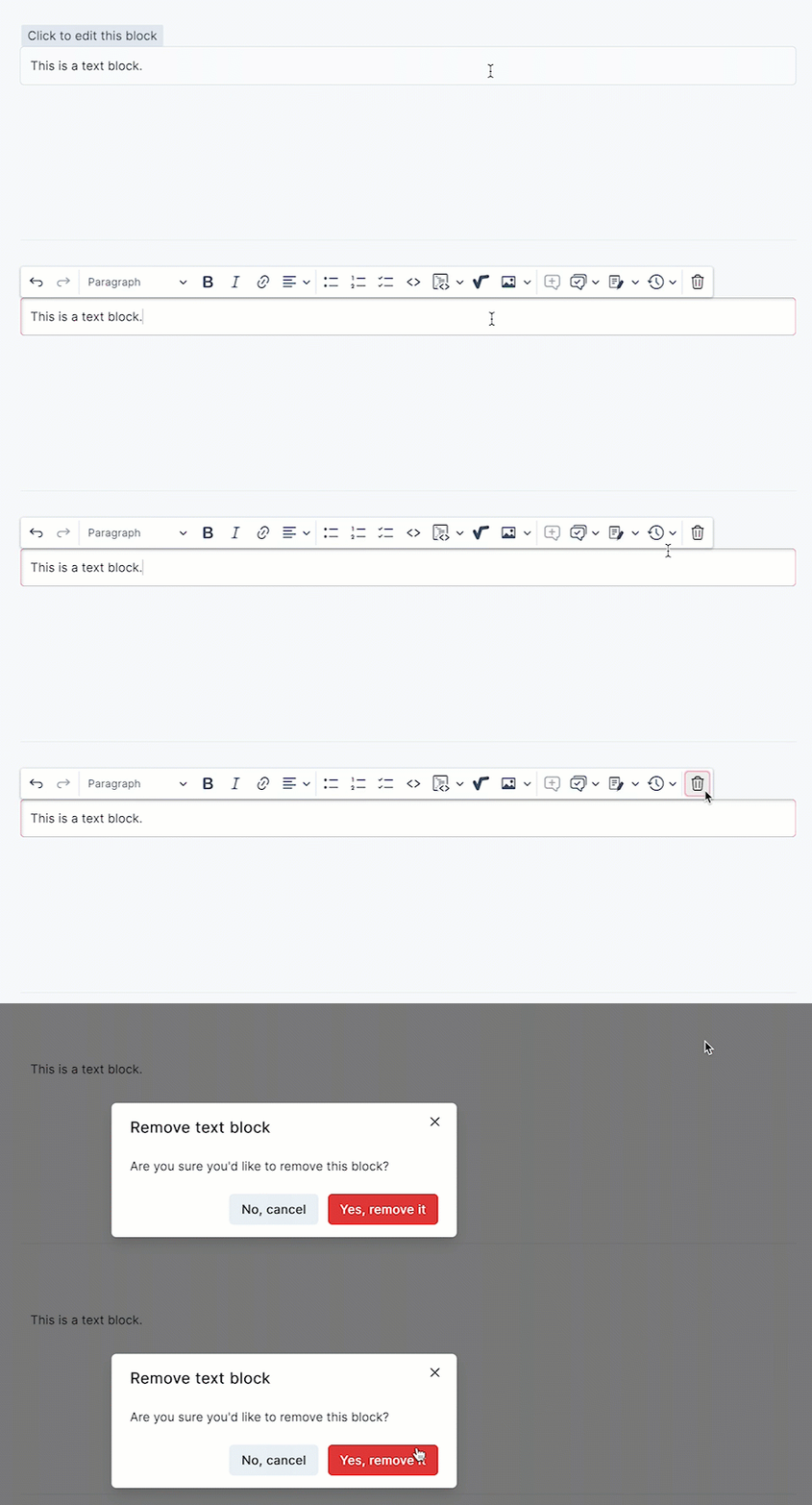
- In the single-button toolbar for the test-driven block
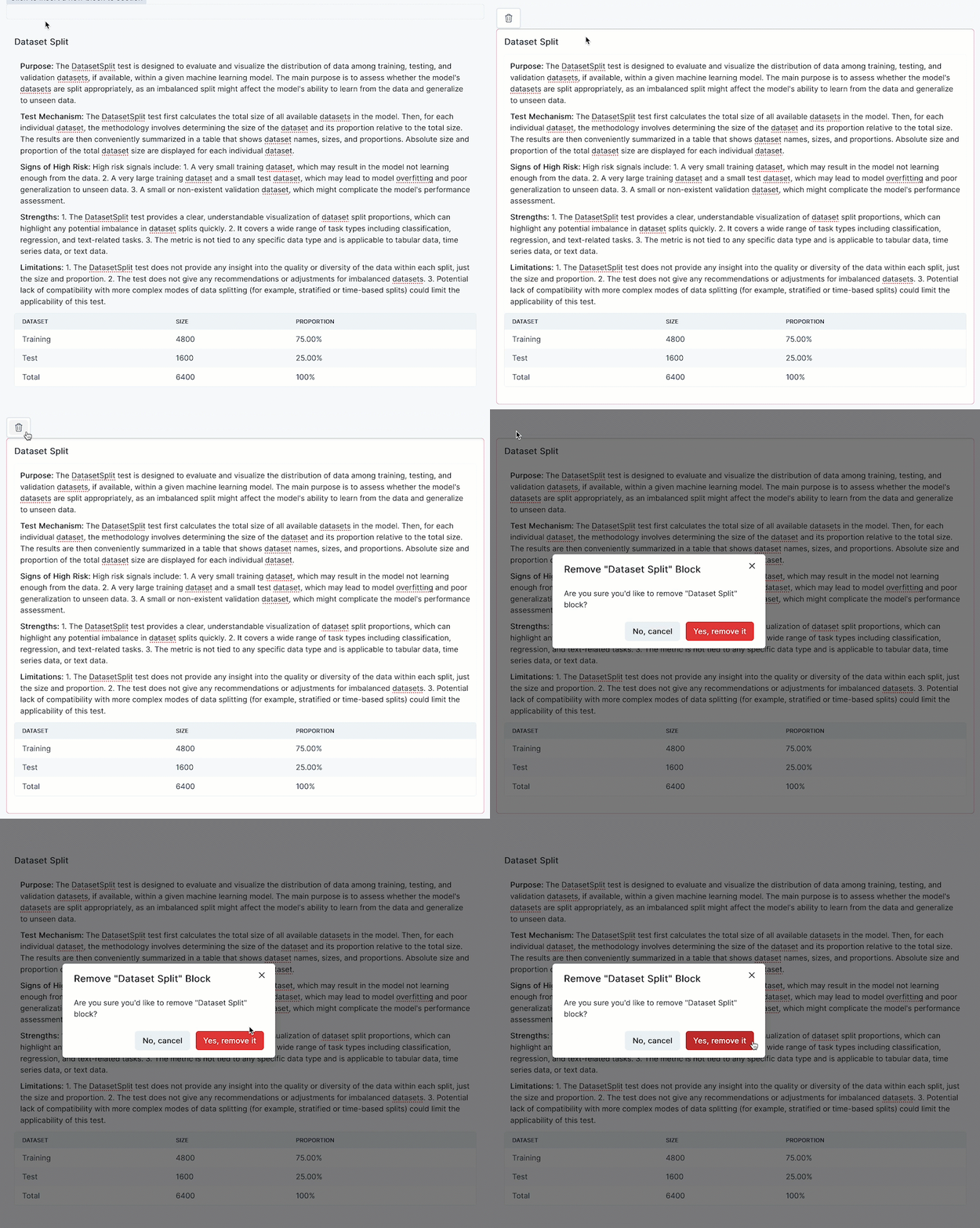
After you have completed these steps, the content block is removed. Test-driven blocks can be re-added later on but text blocks are currently deleted permanently.