Customize resource statuses
Statuses are manipulated via workflow transitions and are used to track the progress of resources through your organization’s processes.
Manage lifecycle processes within your ValidMind Platform UI setup using workflows and transitions.
To review the overall workflow status for a model:
In the left sidebar, click Model Inventory.
Select a model by clicking on it or find your model by applying a filter or searching for it.
On the landing page of your model, locate the Model Status section:
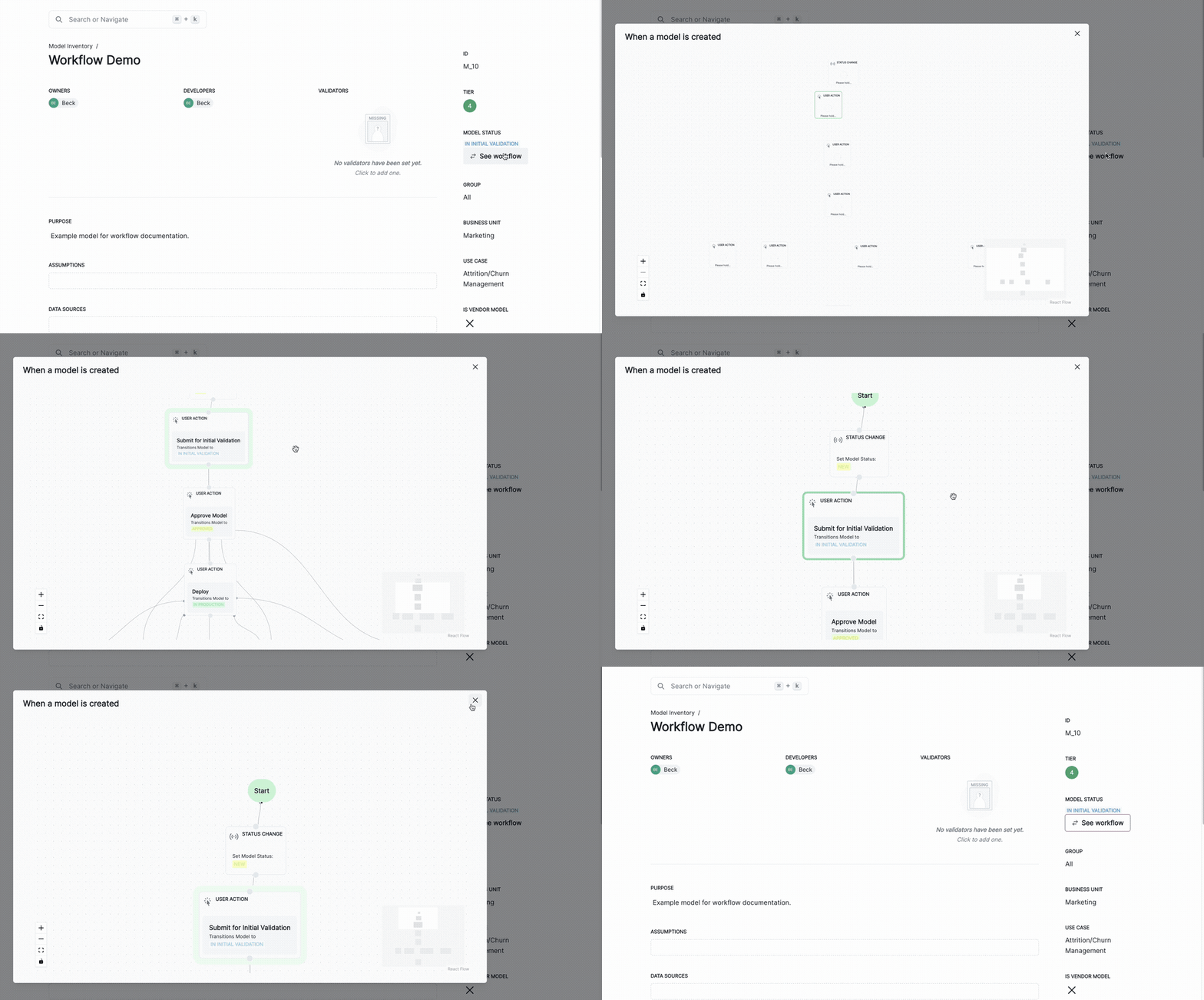
To review the workflow status of a model’s documentation:
In the left sidebar, click Model Inventory.
Select a model by clicking on it or find your model by applying a filter or searching for it.
In the left sidebar that appears for your model, click Documentation.
On this Documentation page, locate Document Status:
Depending on the configuration of your workflows, you may or may not be able to move a model into another workflow state as actions can be gated to only users of certain roles.
When all the actions that can be performed by your role are completed for that model or model documentation at that stage of the workflow, the Actions section will disappear from view.
To transition the overall workflow status for a model:
In the left sidebar, click Model Inventory.
Select a model by clicking on it or find your model by applying a filter or searching for it.
If an action is available to your role, you’ll see it listed in the Actions section on the model’s landing page.
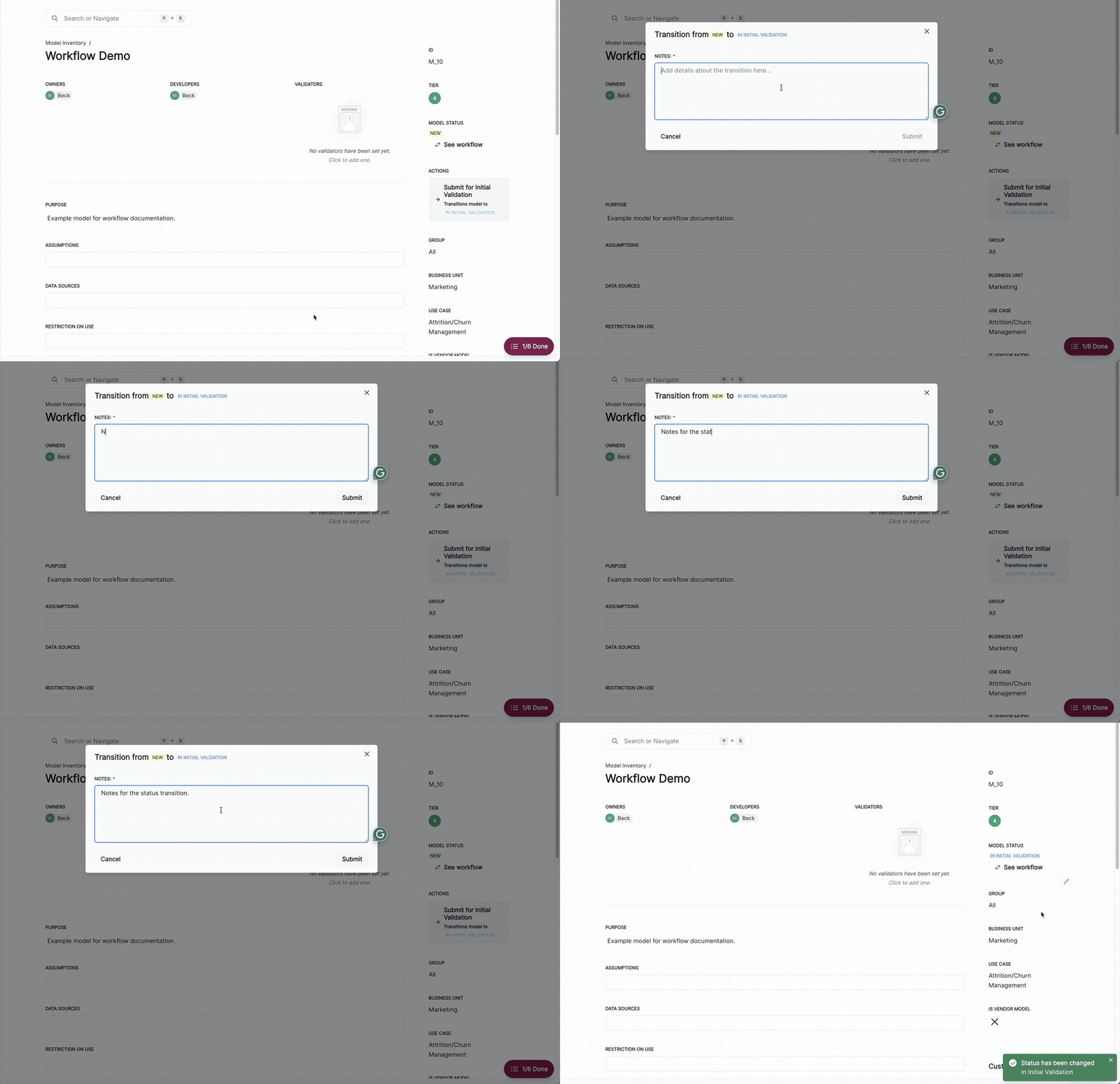
To transition the workflow status of a model’s documentation:
In the left sidebar, click Model Inventory.
Select a model by clicking on it or find your model by applying a filter or searching for it.
In the left sidebar that appears for your model, click Documentation.
If an action is available to your role, you’ll see it listed in the Actions section.